How to Use kiip.space
Everything you need to know about managing your household inventory, tracking warranties, and sharing access.
Adding a New Item
After logging in, you will land on your Items dashboard—the central hub for all your cataloged belongings.
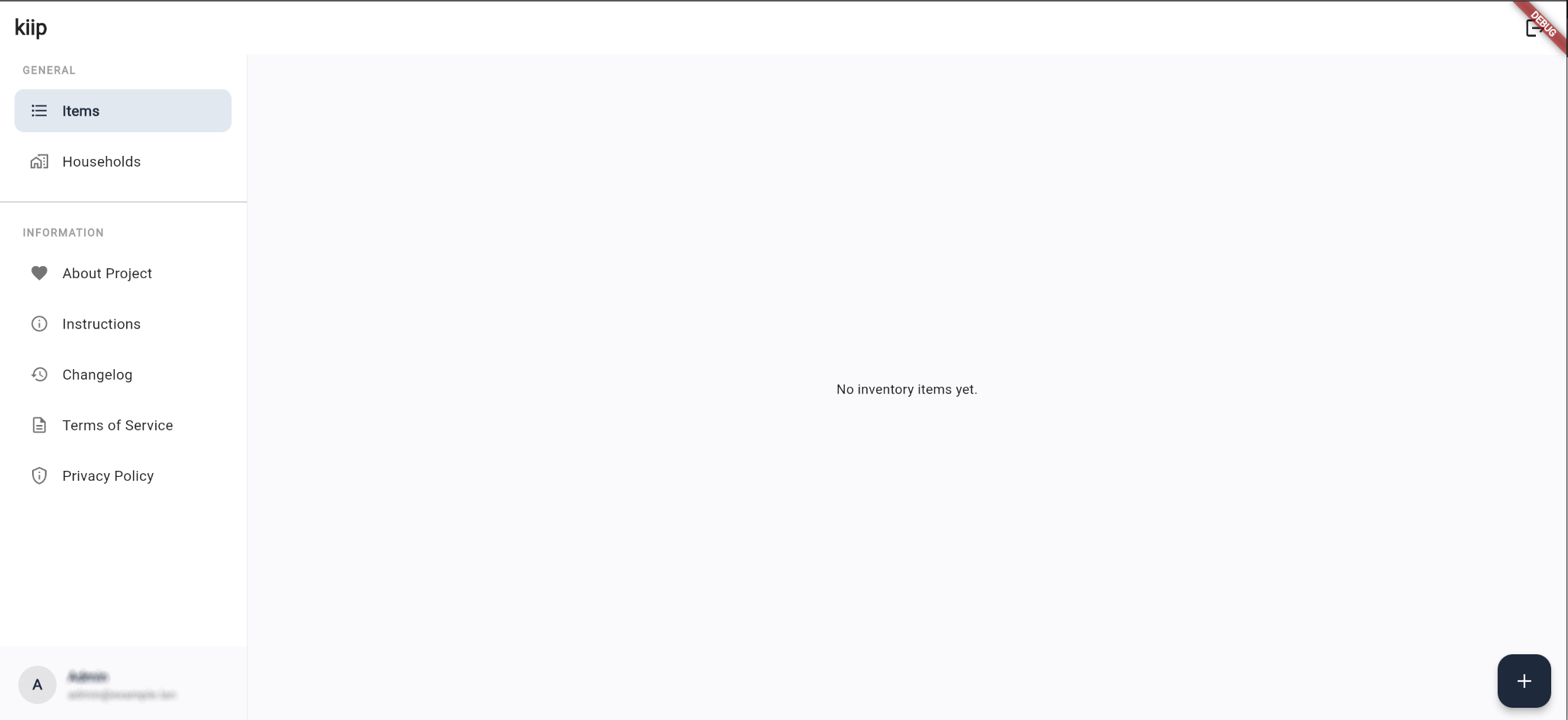
To add a new item, click the + button located in the bottom-right corner of your screen.
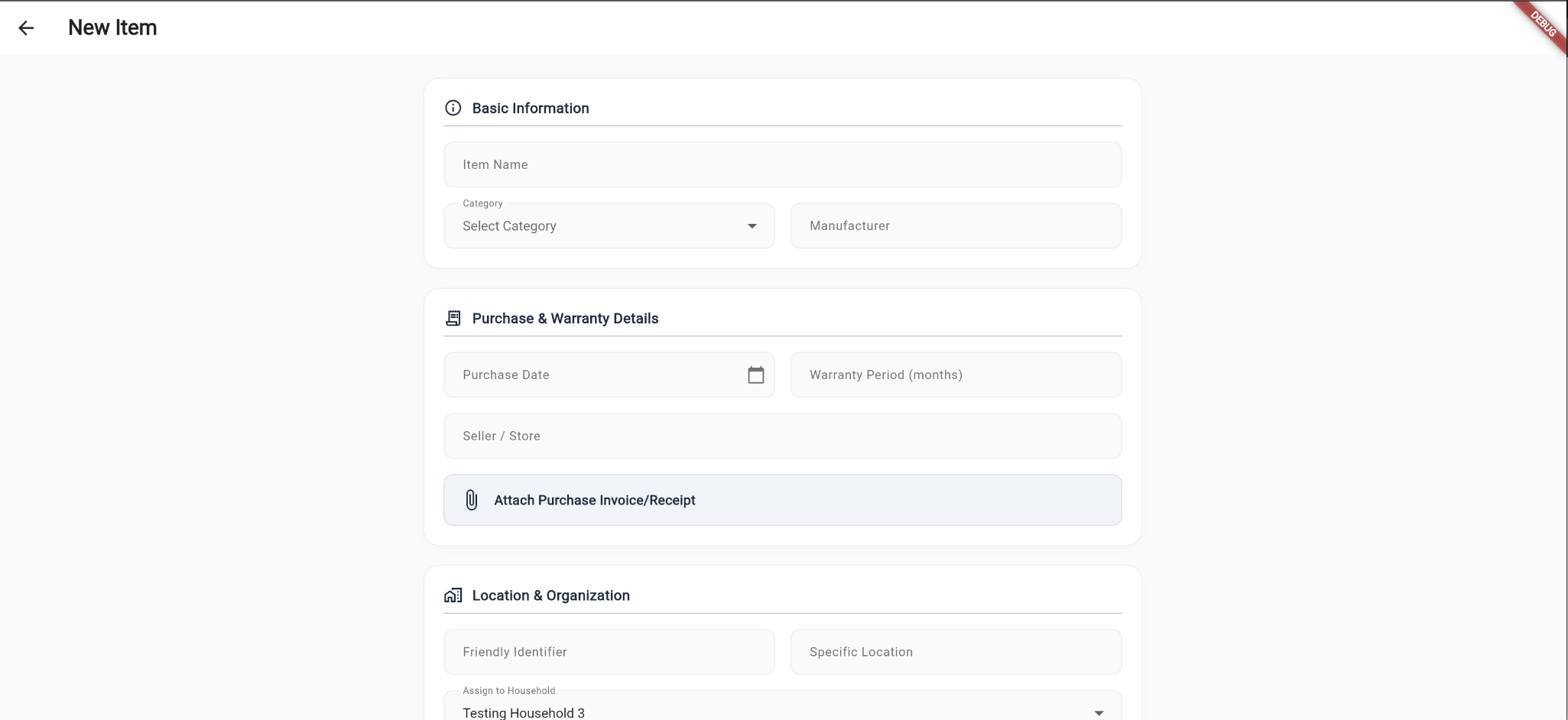
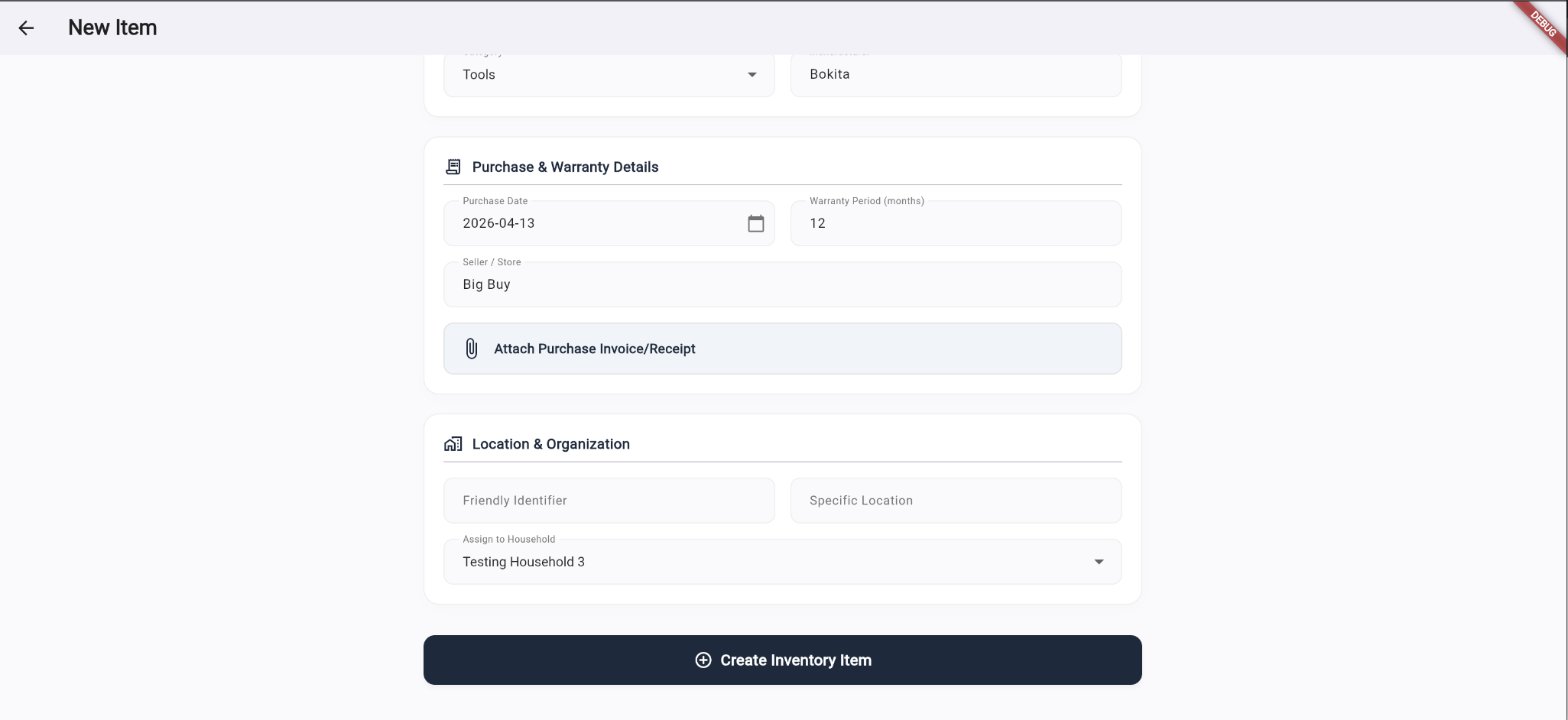
Fill in the essential details: Item Name, Category, Manufacturer, Purchase Date, Warranty Period, and Seller/Store.
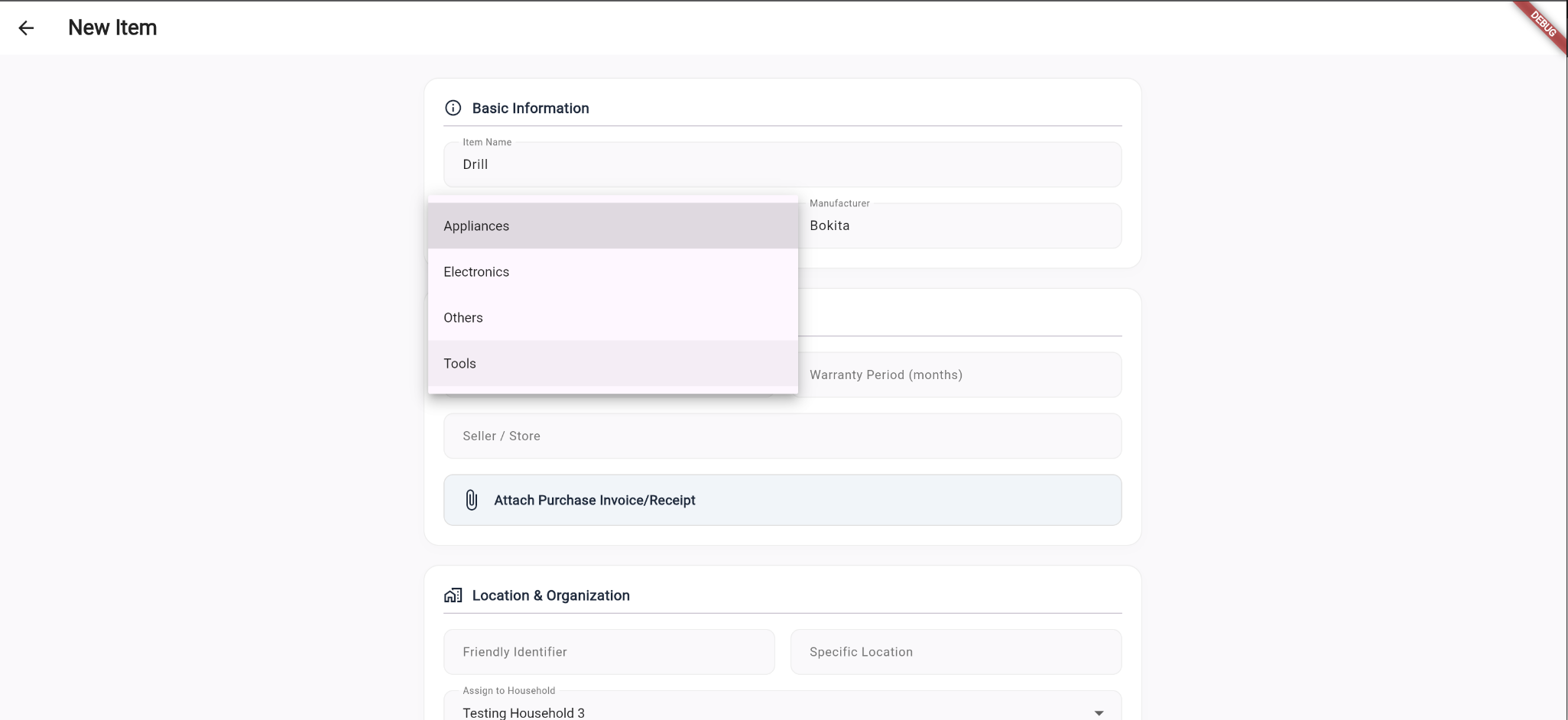
Choose from four primary categories—Appliances, Electronics, Tools, and Others—to keep your inventory cleanly organized.
The Assign to Household field is automatically prefilled with your default household. You can leave this as-is for now; you can easily reassign items once you set up additional households.
Understanding Your Inventory & Statuses
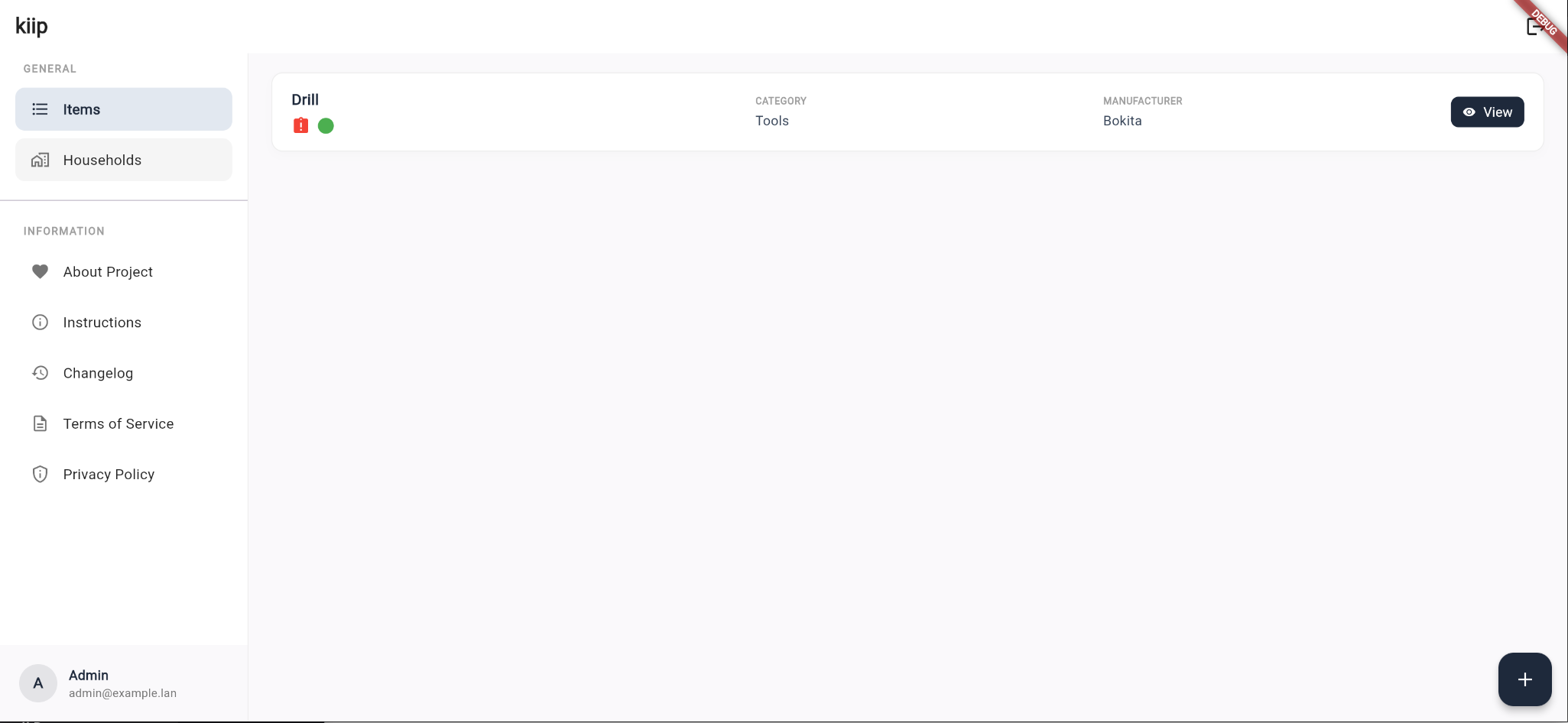
Whenever you view your inventory list, every item displays two at-a-glance status indicators directly beneath its card so you never miss an expiring warranty or lost receipt:
Warranty Status Dot
Green: The warranty is active and valid.
Yellow: The warranty is expiring soon (within its final month).
Red: The warranty period has expired.
Receipt Document Indicator
Green Document: A digital receipt or purchase document is attached.
Red Document: No receipt attached yet. We recommend uploading one for easy claims.

Managing Households
Households allow you to group belongings by location and collaborate with family members or roommates. Everyone invited to a household can view, add, and manage shared items together.
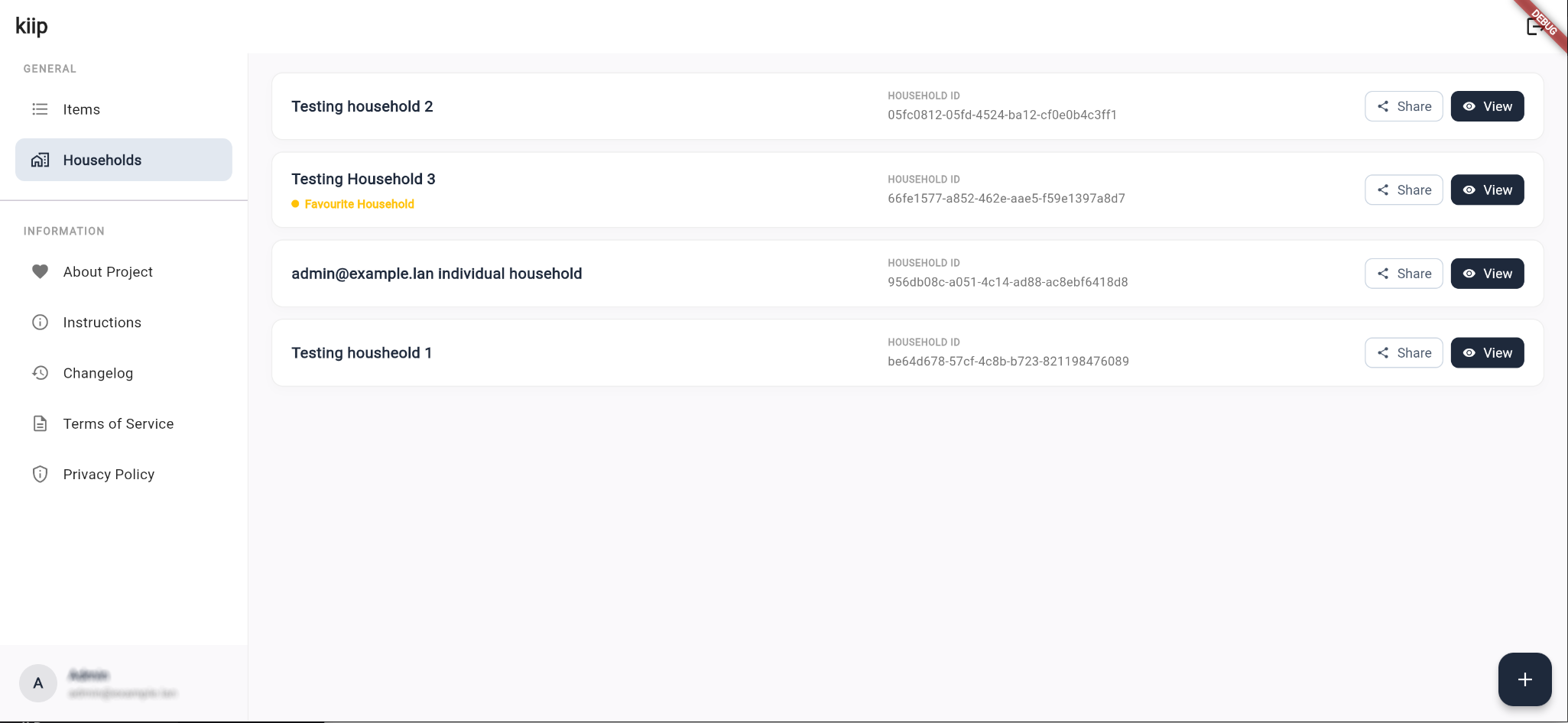
To view your households, select Households from the left-hand navigation sidebar.
The Households list displays all your workspaces. Your primary workspace is marked with an orange dot and the Fave Household badge.
Creating a Household
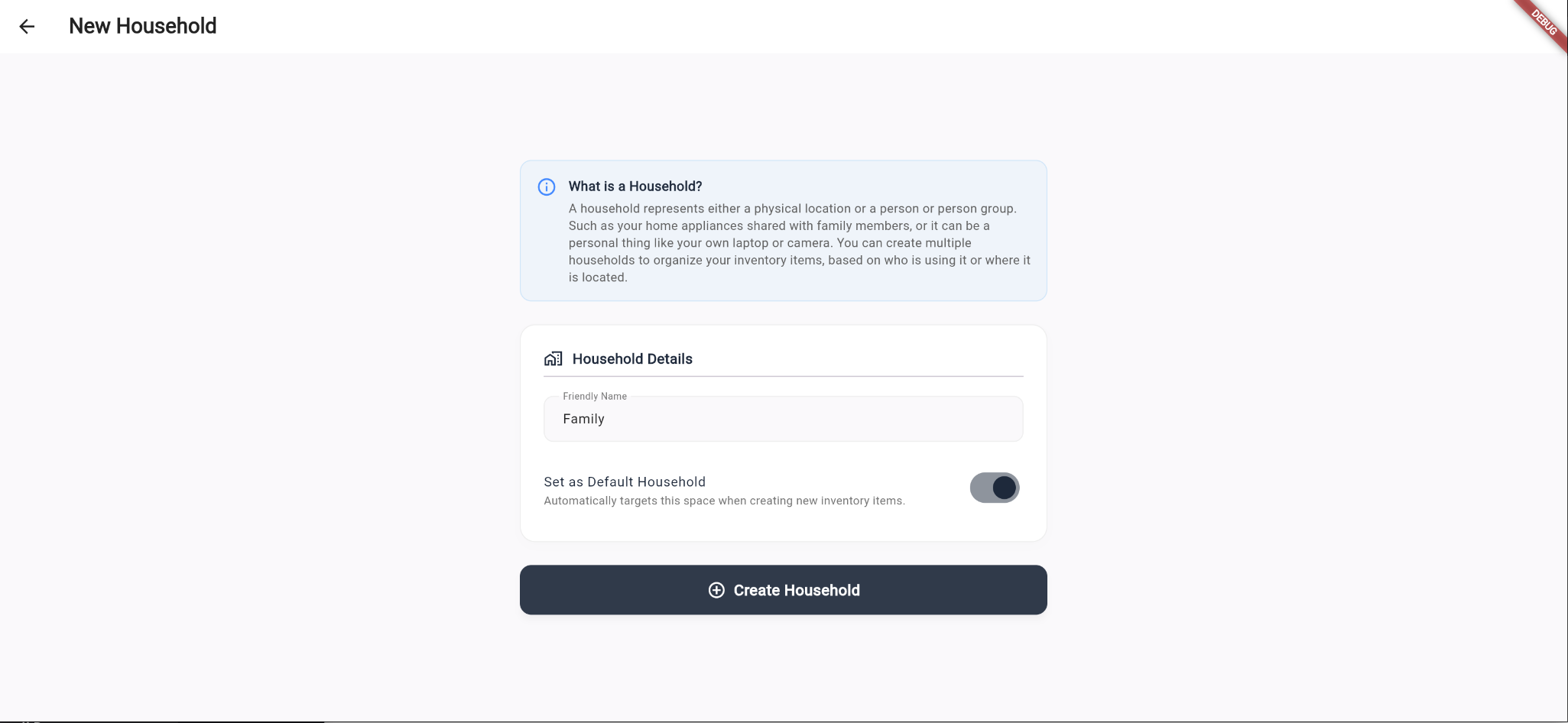
Navigate to the Households screen using the sidebar, then click the + button in the bottom-right corner.
Enter a name for your space (e.g., "Family Home" or "Lake Cabin"). If you check Set as Default Household, any newly created items will automatically be assigned to this space.
Sharing a Household
To invite someone, locate the household in your Households list and click the Share button on the right side of the card.
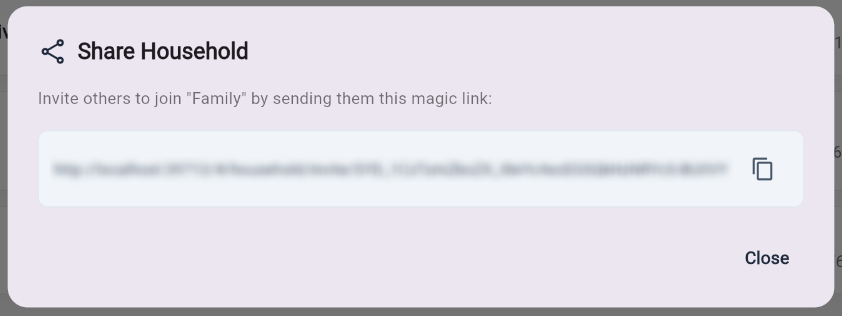
A pop-up will appear with a unique invitation link. Click Copy Link and share it with your partner, roommate, or family member. Once they open the link, they will gain shared access to manage that household's inventory.